| Command | Description | Example |
|---|---|---|
| `!key {key}` | presses a single key | `!key space` |
| `!type {message}` | writes a message out like a typewriter | `!type i like fortnite` |
| `!hotkey {key} {key} ...` | presses all keys at once | `!hotkey alt tab` |
| `!hold {key} {seconds}` | holds a key down for a certain amount of time. | `!hold tab 5` holds tab for 5 seconds |
| Command | Description | Example |
|---|---|---|
| `!mouse {direction} {amount}` | moves the mouse a specified amount in the directions listed. Can take multiple directions | `!mouse downleft 10` |
| `!click [left|middle|right]` | clicks the mouse. If no argument specified defauls to left click | `!click, !click right` |
| `!scroll [down|up] {amount}` | scrolls the mouse either up or down an amount. | `!scroll down 100` |
| `!locate` (Requires your message has an attached image). | Cursed command that will try to find the image you uploaded on gubs screen and move the mouse to it. | [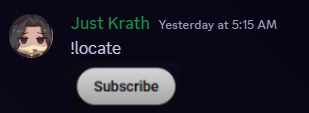](https://docs.kareth.io/uploads/images/gallery/2025-11/image-1764030187798.png) |
| Command | Description | Example | Aliases |
|---|---|---|---|
| `!ffstart` | boots up firefox. | `!ffstart` | |
| `!ffstop` | kills firefox | `!ffstop` | |
| `!goto {url}` | loads the specifies url in firefox | `!goto http://tacobell.com/` | `!url` |
| `!youtube {query}` | will search youtube for whatever your query is and selects the first result | `youtube parkour civilization` | `!yt` |
| `!ffrefresh` | refreshes the page | `!ffrefresh` | |
| `!ffinfo` | prints info about the current page | `!ffinfo` | |
| `!bookmark {name} {url}` | adds a bookmark, if no url is specified it will try to use the current page | `!bookmark taco tacobell.com` | `!addbookmark` |
| `!unbookmark {name}` | removes the specified bookmark | `!unbookmark taco` | `!removebookmark` `!deletebookmark` `!delbookmark` |
| `!bookmarks` | lists the saved bookmarks | `!bookmarks` | |
| `!gobookmark {name}` | loads the specified bookmark | `!gobookmark taco` | `!openbookmark` |
| `!execute {javascript}` | nightmare command, injects javascript into the current page and runs it. | `!execute document.body.innerHTML = '';` -- blanks out the page |
| Command | Description | Example | Aliases |
|---|---|---|---|
| `!start_obs` | boots up obs studio and tries to connect to the websocket server | `!start_obs` | |
| `!stop_obs` | stops obs | `!stop_obs` | |
| `!obs_status` | Checks if obs is running and if the websocket is reachable | `!obs_status` | |
| `!obs_configure_replay {seconds}` | Configures the duration of OBS's replay buffer | `!obs_configure_replay 120` | |
| `!obs_start_replay` | starts the replay buffer function | `!obs_start_replay` | |
| `!obs_stop_replay` | stops the replay buffer function | `!obs_stop_replay` | |
| `!obs_save_replay` | saves the replay to disk and if configured will ship it to google drive | `!obs_save_replay` | `!clip` |